> For the complete documentation index, see [llms.txt](https://docs.siminsights.com/llms.txt). Markdown versions of documentation pages are available by appending `.md` to page URLs; this page is available as [Markdown](https://docs.siminsights.com/hyperskill-studio-authoring/virtual-entities/edit-virtual-objects.md).

# Edit Virtual Objects

Use HyperSkill Desktop to edit a virtual object (VO). This page shows how to add and manage hitboxes.

## Add a Hitbox

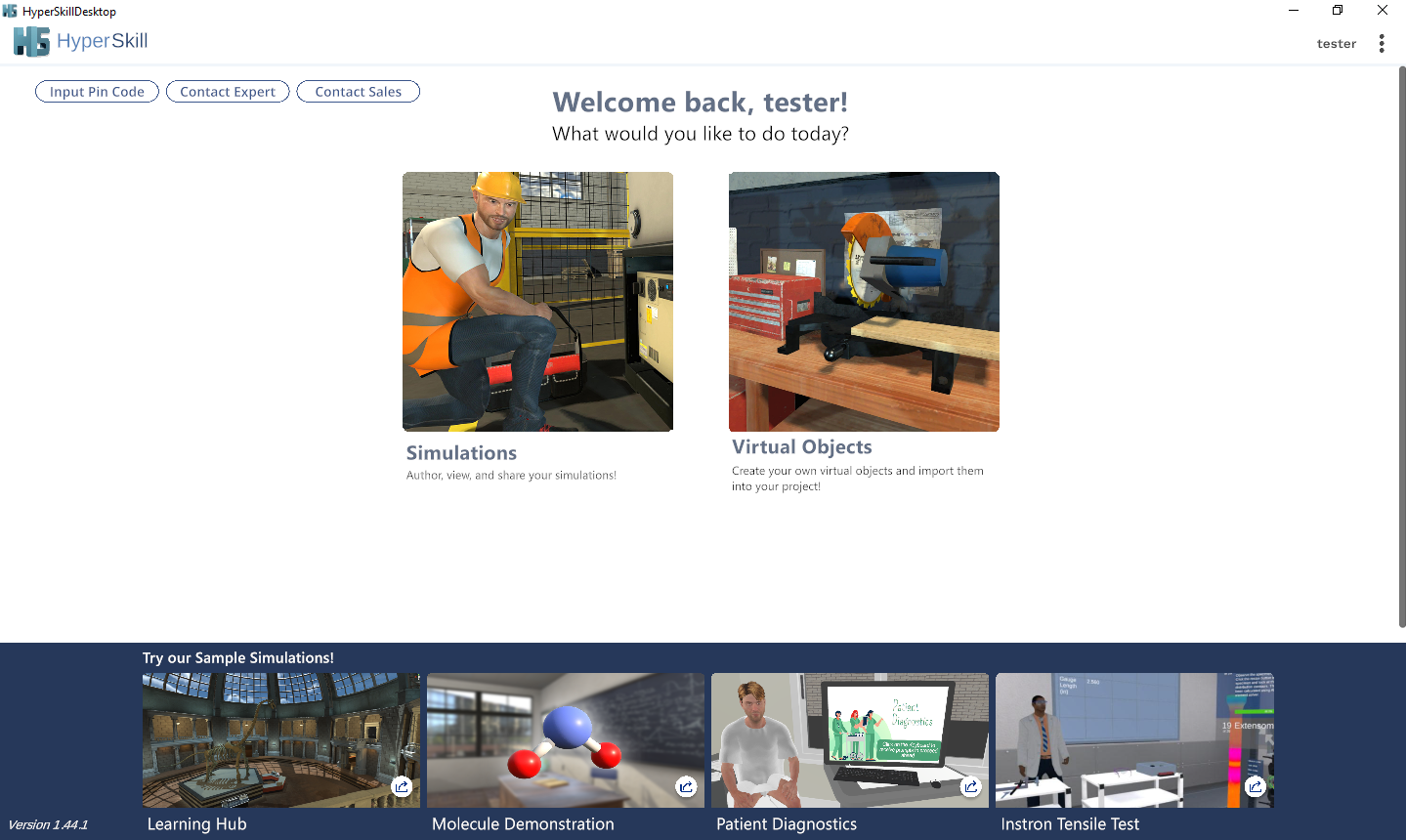
1. Launch "HyperSkillDesktop.exe" and log in with your credentials.

<figure><img src="https://2704613365-files.gitbook.io/~/files/v0/b/gitbook-x-prod.appspot.com/o/spaces%2FxYaaXoZ4YGbVdAnAhdcE%2Fuploads%2FrQBgQiYyNXFco1lnEWmz%2F16_61.png?alt=media&#x26;token=2cde3d12-e1d7-4f7e-a3d4-b41a1f313be6" alt=""><figcaption></figcaption></figure>

2. Select VIRTUAL OBJECTS.

<figure><img src="https://2704613365-files.gitbook.io/~/files/v0/b/gitbook-x-prod.appspot.com/o/spaces%2FxYaaXoZ4YGbVdAnAhdcE%2Fuploads%2FJlDLGffe7DRXtm8FY9i2%2F17_62_84.png?alt=media&#x26;token=b0733e63-c98d-4299-b1b9-fbf55ae9fa24" alt=""><figcaption></figcaption></figure>

3. Hover over the desired virtual object and press the edit button (pencil icon).

<figure><img src="https://2704613365-files.gitbook.io/~/files/v0/b/gitbook-x-prod.appspot.com/o/spaces%2FxYaaXoZ4YGbVdAnAhdcE%2Fuploads%2FlZQs4b5vEiKCOOYErb3N%2F23_63.png?alt=media&#x26;token=335d2941-77fa-42ca-84ba-f21043f291cf" alt=""><figcaption></figcaption></figure>

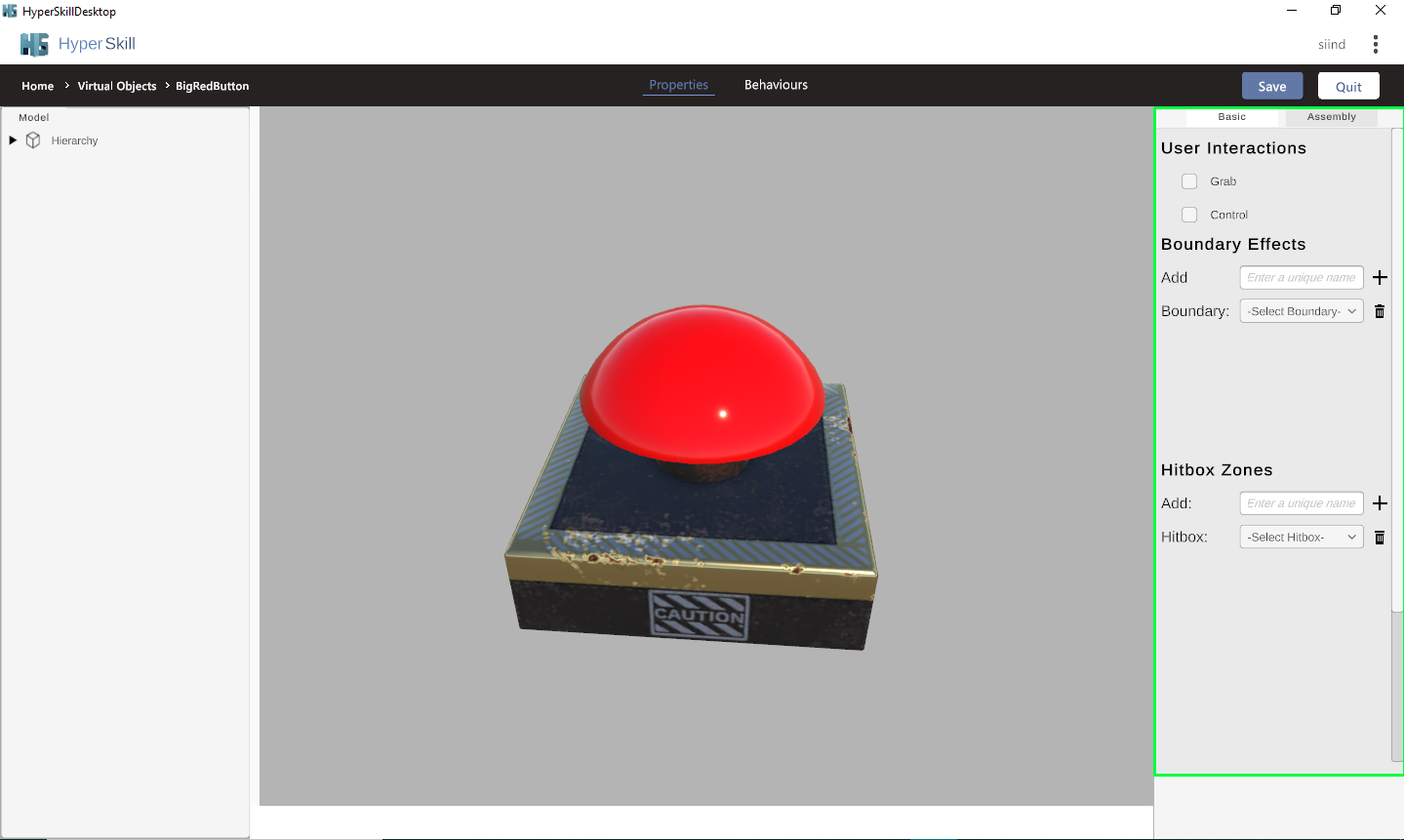
4. The virtual object loads and the basic panel opens.

<figure><img src="https://2704613365-files.gitbook.io/~/files/v0/b/gitbook-x-prod.appspot.com/o/spaces%2FxYaaXoZ4YGbVdAnAhdcE%2Fuploads%2FDQv3Jz3khRHkIfcKeCxm%2F64.png?alt=media&#x26;token=6efd388d-a337-452a-a449-eddbb83961ac" alt=""><figcaption></figcaption></figure>

5. In the "Hitbox Zones" section of the basic panel, type your desired hitbox name next to the "Add" header.

<figure><img src="https://2704613365-files.gitbook.io/~/files/v0/b/gitbook-x-prod.appspot.com/o/spaces%2FxYaaXoZ4YGbVdAnAhdcE%2Fuploads%2F4CkvnzT3FsRl24xydqeF%2F65.png?alt=media&#x26;token=02ae465d-c596-4e50-ae31-83f1b2fa77dc" alt=""><figcaption></figcaption></figure>

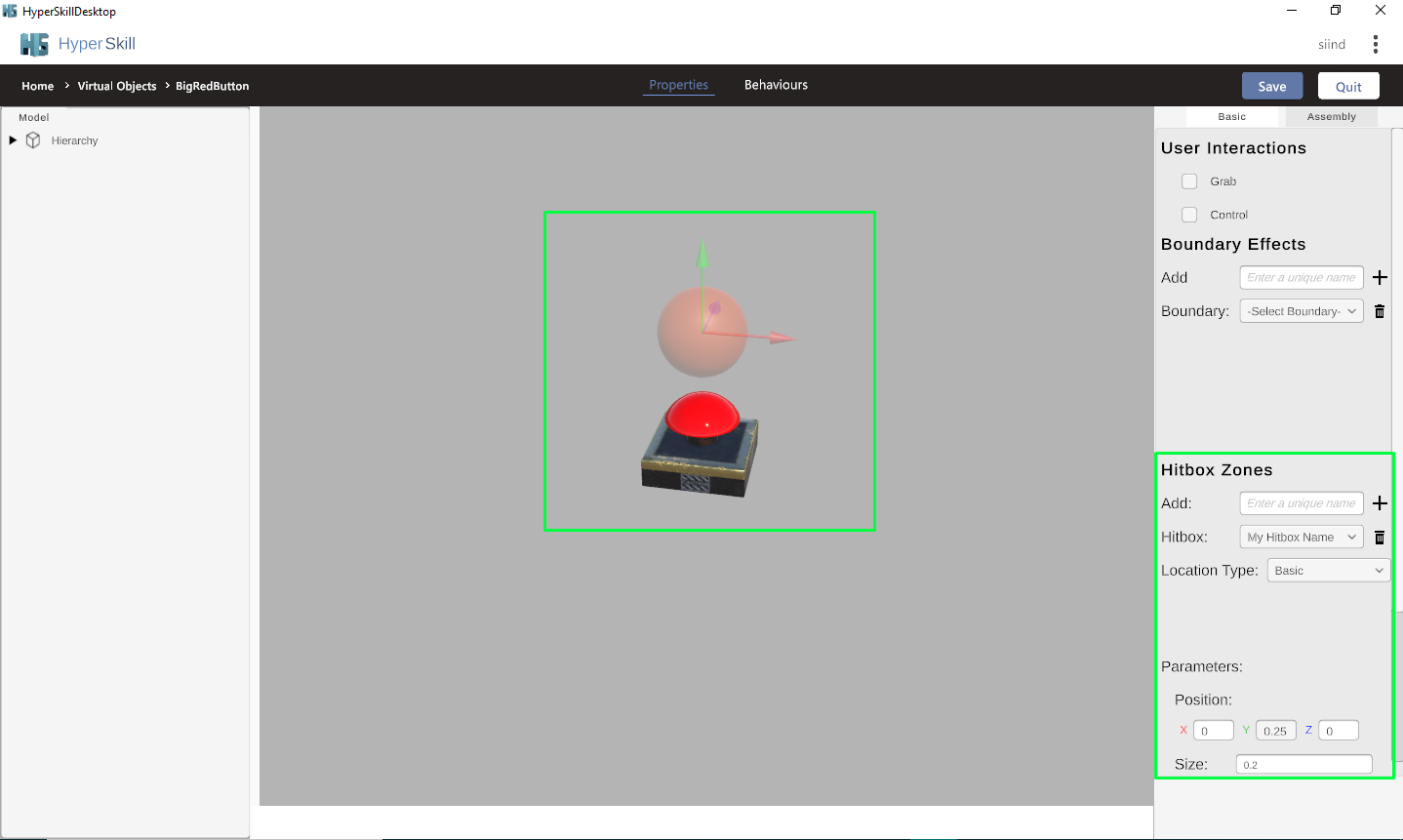
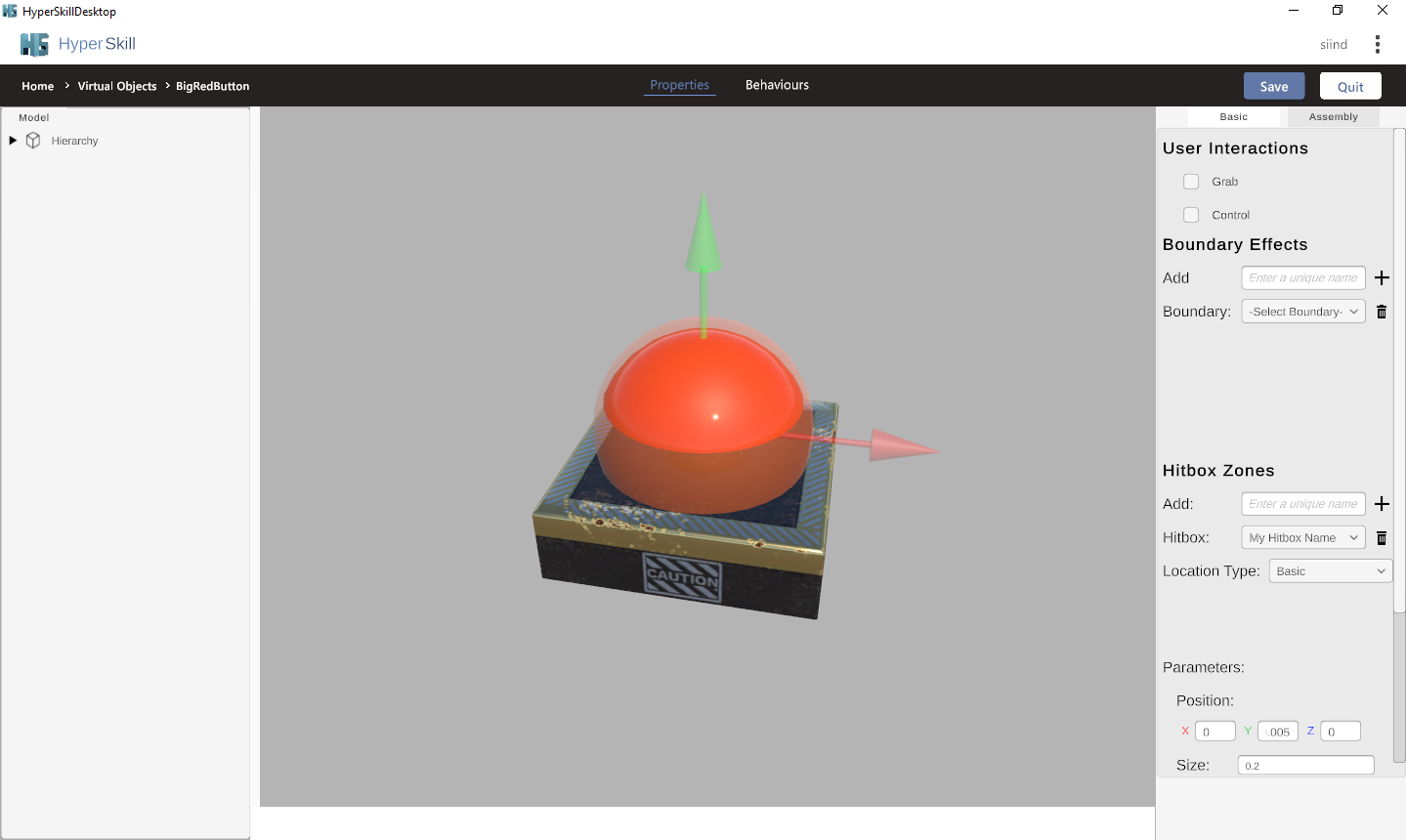
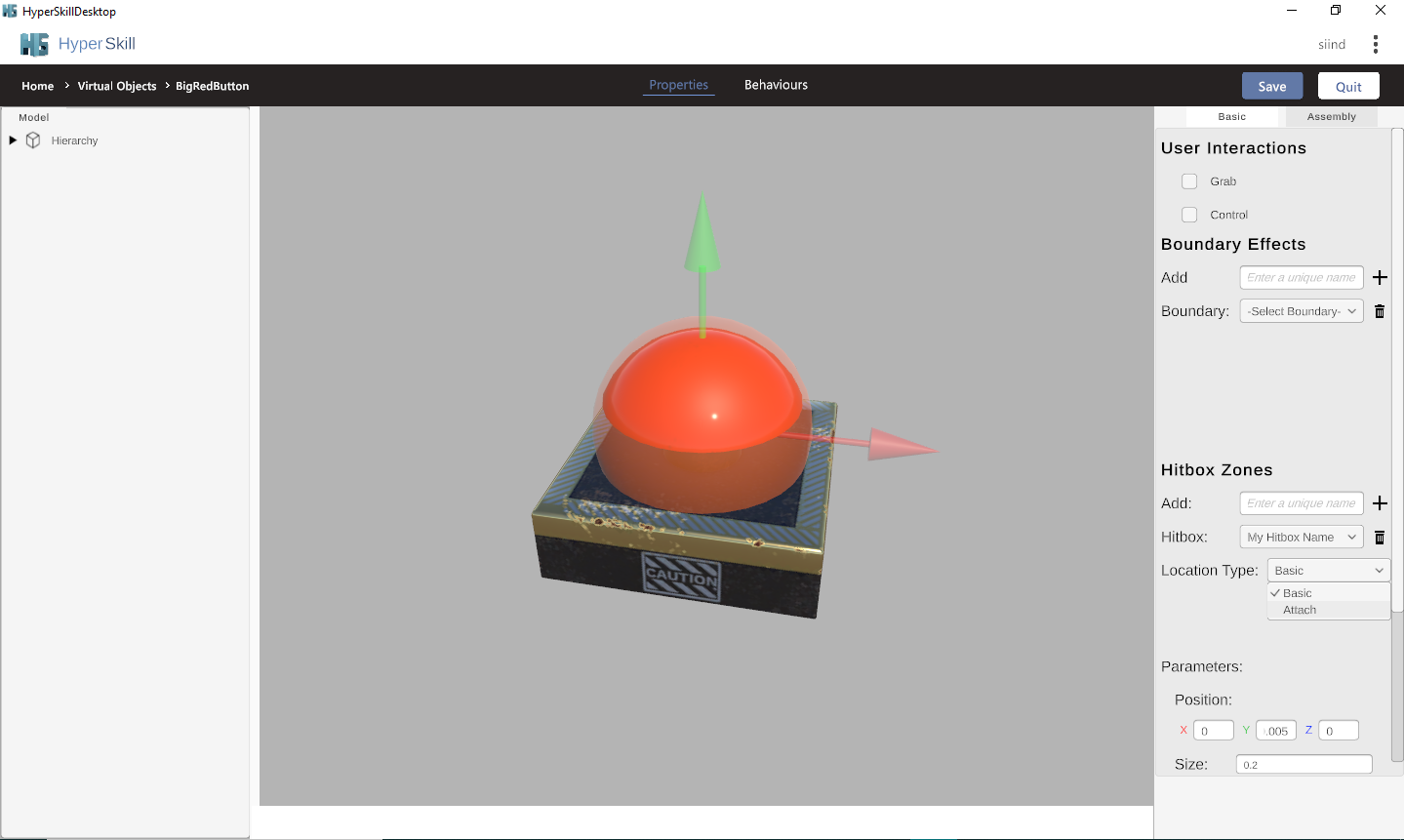
6. Press the "+" button to create a new hitbox. The "Hitbox" dropdown updates and includes your new hitbox. A red circle appears, showing the size and position of the hitbox. Depending on the size of your virtual object, the red circle may be inside the 3D model. You can change the size and position of the hitbox using the UI.

<figure><img src="https://2704613365-files.gitbook.io/~/files/v0/b/gitbook-x-prod.appspot.com/o/spaces%2FxYaaXoZ4YGbVdAnAhdcE%2Fuploads%2FwazCzgK6NO1aBiTVRvJ8%2F66.png?alt=media&#x26;token=c8ace589-0eda-4dc5-a103-8cea4ba6b711" alt=""><figcaption></figcaption></figure>

<figure><img src="https://2704613365-files.gitbook.io/~/files/v0/b/gitbook-x-prod.appspot.com/o/spaces%2FxYaaXoZ4YGbVdAnAhdcE%2Fuploads%2F32VxlUvlnSaHFmFBfWWj%2F67.png?alt=media&#x26;token=4b7ff652-77fb-49e7-aac1-83cd7f8e6d30" alt=""><figcaption><p>In the above example, the hitbox has been scaled and positioned to approximate the red button.</p></figcaption></figure>

7. Use the "Hitbox" dropdown to select a hitbox to edit or delete it.

<figure><img src="https://2704613365-files.gitbook.io/~/files/v0/b/gitbook-x-prod.appspot.com/o/spaces%2FxYaaXoZ4YGbVdAnAhdcE%2Fuploads%2F8z7Jo29MfaMMEJ0cIiQs%2F68.png?alt=media&#x26;token=ee45d7a0-626a-4988-aeb4-3410e95622c8" alt=""><figcaption></figcaption></figure>