> For the complete documentation index, see [llms.txt](https://docs.siminsights.com/llms.txt). Markdown versions of documentation pages are available by appending `.md` to page URLs; this page is available as [Markdown](https://docs.siminsights.com/hyperskill-studio-authoring/virtual-entities/special-virtual-objects/painting/pen.md).

# Pen

In addition to spray painting, HyperSkill supports painting and marking with pens. Pens give finer control, letting users add fine details or write.

To paint a virtual object, it must first be paintable. See [Setup](/hyperskill-studio-authoring/virtual-entities/special-virtual-objects/painting/setup.md).

## Prepare the 3D model

Procure a 3D model of the pen tool. It can be any 3D model, as long as it meets these requirements:

* The collider of the object must not cover the tip of the writing tool.
  * \[Recommended] Adjust the collider so there is plenty of space for the tool tip. This gives a smoother experience when writing or painting in VR.
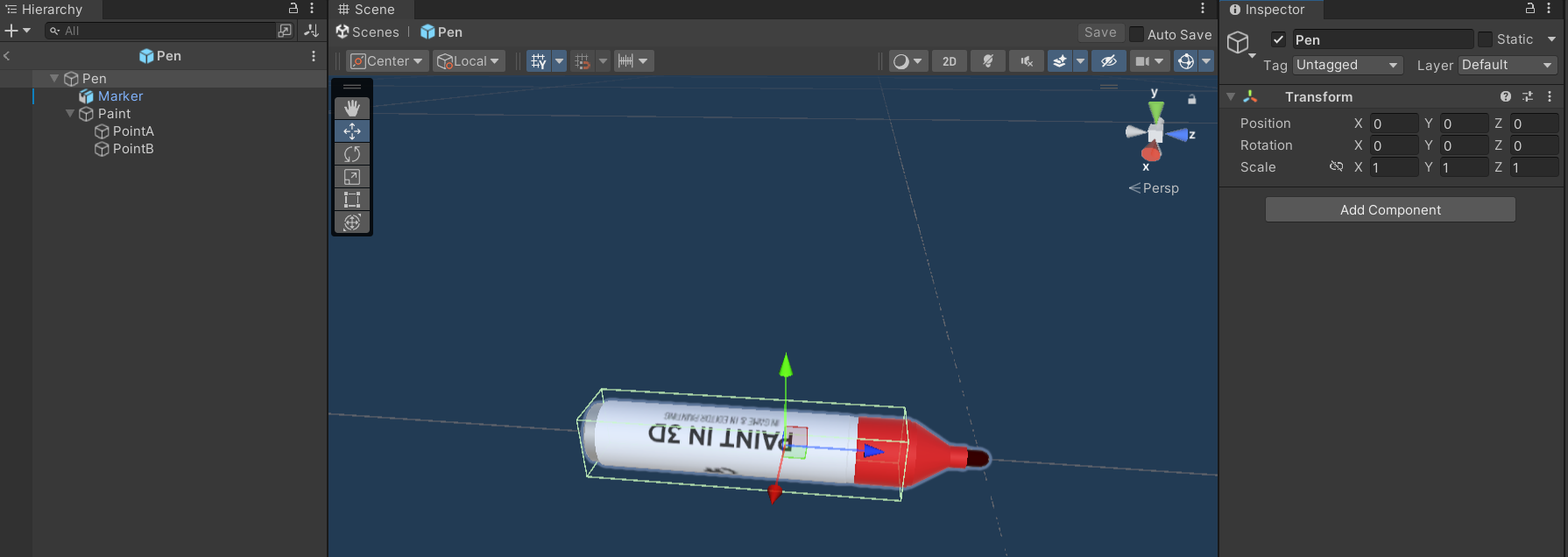
* There must be a child transform on the object named "Paint".
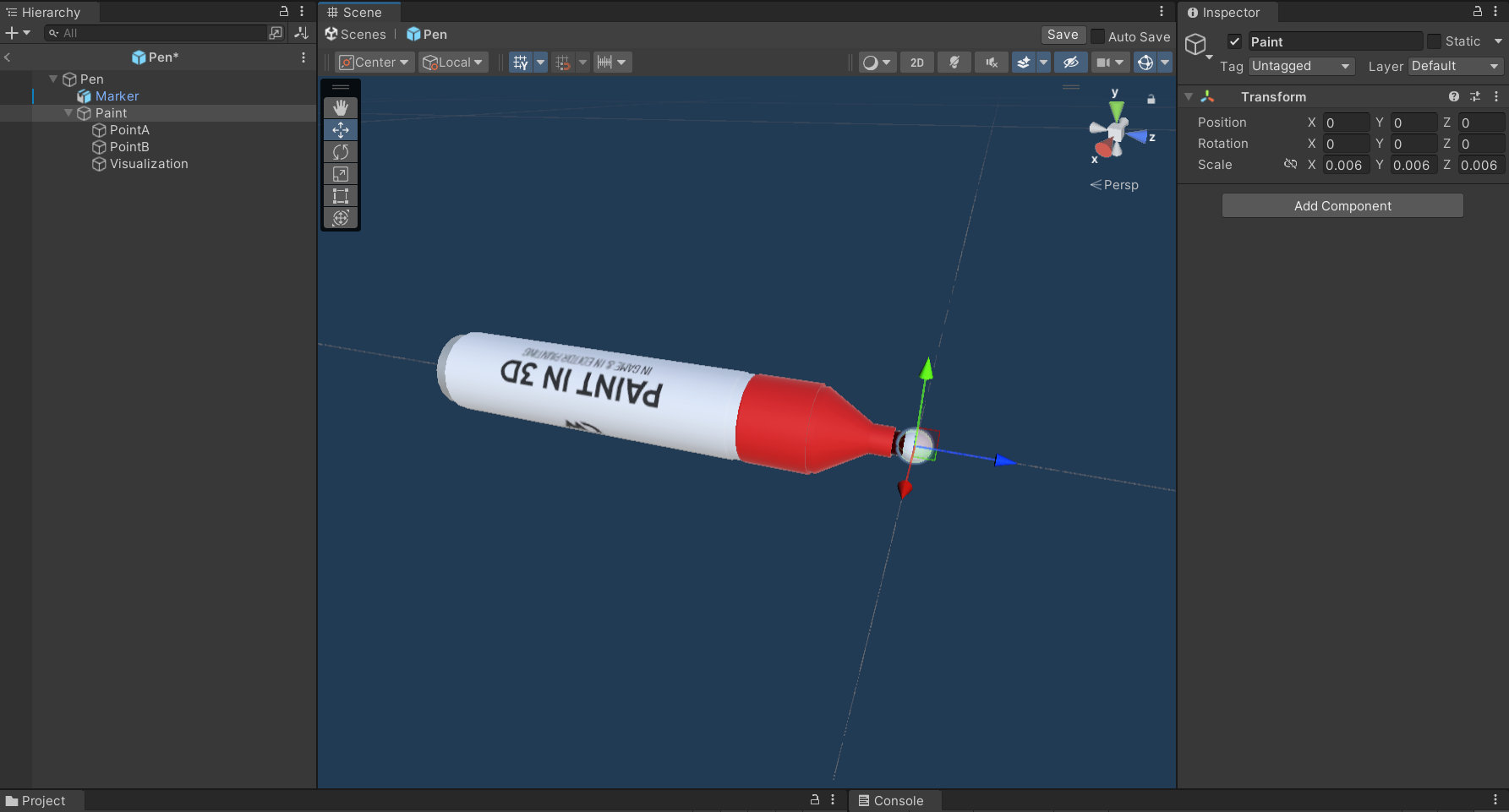
* The "Paint" transform must be scaled to the size of the tip of the pen.
  * \[Recommended] Add a 3D sphere as a child of the "Paint" transform and adjust the "Paint" scale until the sphere covers the tip of the pen. The sphere visualizes the collider used to apply the paint. Remove the sphere when you are done adjusting.
* Two additional transforms must be added to the pen object, named "PointA" and "PointB":
  * "PointA" is positioned at the end **opposite** the tip of the pen.
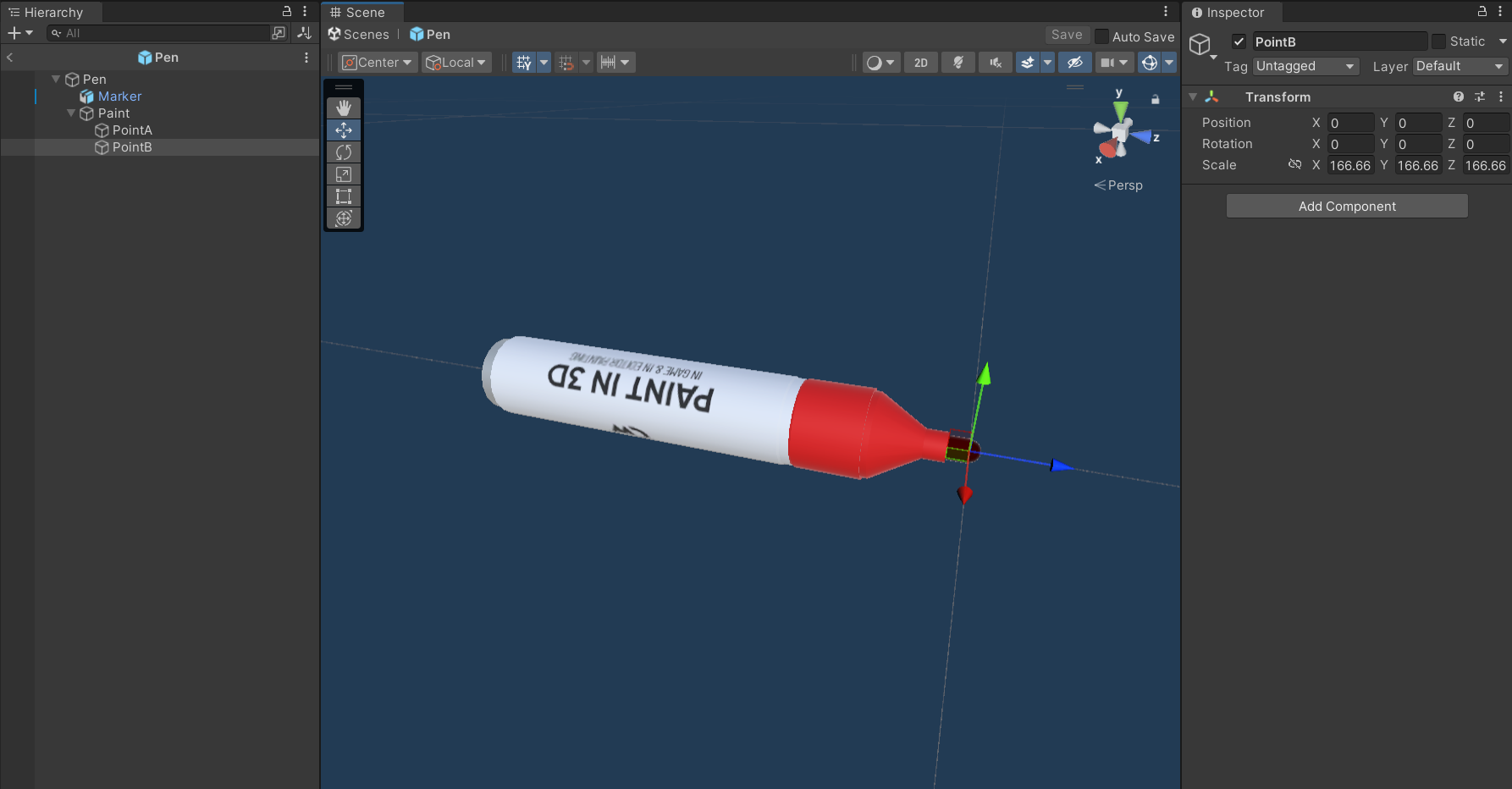
  * "PointB" is positioned at the tip of the pen.

Once you have uploaded the 3D model as a virtual object to your account, you can add the pen tool to your experience.

<figure><img src="https://2704613365-files.gitbook.io/~/files/v0/b/gitbook-x-prod.appspot.com/o/spaces%2FxYaaXoZ4YGbVdAnAhdcE%2Fuploads%2FIvhoAGGLQqZpcTbfUJGJ%2Fimage.png?alt=media&#x26;token=3856582b-98e0-4b5f-b9fd-a09aeb5d1ea9" alt=""><figcaption><p>Sample setup of a Pen in Unity</p></figcaption></figure>

<figure><img src="https://2704613365-files.gitbook.io/~/files/v0/b/gitbook-x-prod.appspot.com/o/spaces%2FxYaaXoZ4YGbVdAnAhdcE%2Fuploads%2F7X9ikra5eUXI8eqwWZqd%2Fimage.png?alt=media&#x26;token=8fbb41cf-83f5-4a98-89a6-0510b2336398" alt=""><figcaption><p>The position of Point B, at the tip of the pen</p></figcaption></figure>

<figure><img src="https://2704613365-files.gitbook.io/~/files/v0/b/gitbook-x-prod.appspot.com/o/spaces%2FxYaaXoZ4YGbVdAnAhdcE%2Fuploads%2FwLRU9chKoJoA1wJD3a4g%2Fimage.png?alt=media&#x26;token=12d82177-8998-46a8-be2e-c5b27ceea9bc" alt=""><figcaption><p>The configuration of the Paint transform, including the scale and a visualization of the painting collider</p></figcaption></figure>

## Set up the tool

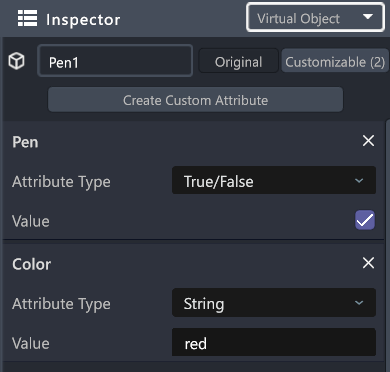
In authoring mode, add the following custom attributes to your pen virtual object:

* **Pen** (bool): Set to true to enable the feature. If false, the tool cannot be used. This setting is per object, so some pens can be enabled and others not.
* **Color** (string): A named color or a hex color code.
  * Supported named colors: black, blue, clear, cyan, gray, green, grey, magenta, red, white, yellow.
  * You can use any hex color code.
  * The "white" color is interpreted as color removal and removes any applied paint.

<figure><img src="https://2704613365-files.gitbook.io/~/files/v0/b/gitbook-x-prod.appspot.com/o/spaces%2FxYaaXoZ4YGbVdAnAhdcE%2Fuploads%2Fle5gzEB1Cv59XqEMsIG4%2Fimage.png?alt=media&#x26;token=e0a24ab8-3bd9-4062-8310-761714ae17ca" alt=""><figcaption><p>Sample attribute setup for a pen tool</p></figcaption></figure>